
Table of Contents
Introduction
During the age of digitalization, UI (User Interface) and UX (User Experience) design have become a necessary skill to craft websites, apps, and software that truly interact with users. If you're just beginning to learn design or you're a developer who wants to know more about design principles, this guide walks you through the fundamentals of
We'll work through it step by step so that you can build good foundations and start designing with confidence.
What is UI/UX Design?
UI and UX are often used interchangeably, but they are mutually exclusive but different design components of a product.
UI (User Interface) is the visual structure of a product-what humans see and engage with. That's buttons, icons, color palettes, fonts, and padding.
UX or User Experience is the overall experience a user gets when he uses a product. It's the feel of the product: Is it simple to use? Is the flow intuitive? Does it efficiently get the job done by the user?
A good example to grasp:
If you order something through an app, buttons, menu, and colors you're clicking on are the UI. How smoothly you order, monitor it, and get it without getting confused-that's UX.
Simply put, UI is what you see, and UX is how it feels and functions.
The Key Differences Between UI and UX
Although UI and UX go hand in hand, they address different aspects of the product development process. UI is all about creating the product surface-the look and feel. It's about how welcoming, consistent, and interactive the interface is.UX, on the other hand, is all about the experience. It starts with learning about people, learning about their issues, and creating solutions that add value. UX designers are all about structure, logic, flow, and usability in general. stunningly designed UI is useless if it frustrates or bewilders the user (bad UX).
Alternatively, a stunningly designed user flow can be a flop if the UI is old-fashioned or illogical. A wonderful product demands great UI and well-thought-out UX.

UX Design Process: From Idea to Execution
UX design is the problem-solving process to design the optimal user experience. It is a step-by-step process that takes teams through discovering users, designing for users, and testing their design. Understanding the right UX methodology helps teams move from vague ideas to validated, user-centered solutions.
UX or User Experience is the overall experience a user gets when he uses a product. It's the feel of the product: Is it simple to use? Is the flow intuitive? Does it efficiently get the job done by the user?

Research
Begin by learning about your users-what they are, what they are doing, and how they are using your product. Conduct surveys, interviews, and analysis to discover.

Define
Analyze the research findings and create clear user personas, goals, and pain points. This enables the creation of a user-focused vision for the produ

Ideate
Brainstorm the solutions to the problems outlined. Write down ideas, map out user flows, and consider various approaches to structuring the experience.

Design
Make wireframes and low-fidelity mockups to see the product structure. Proceed to interactive prototypes in a bid to model user flows.

Test
Test your hypotheses with usability testing with real users. Observe how users work with your prototype and find issues.

Iterate
Iterate on your designs based on feedback. UX is never done-it evolves based on user needs and business goals.
This approach ensures that products are user-led and not assumption-driven.
Principles of Good UX Design
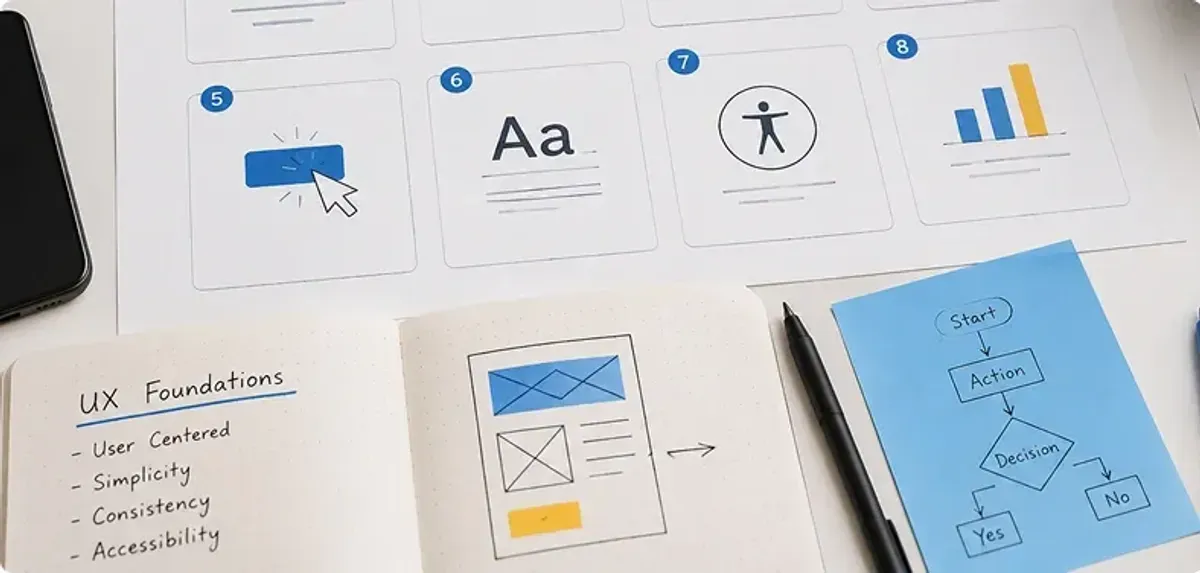
Great UX isn't about clean design or fast loads. It's about understanding how people behave and designing solutions that feel natural, useful, and rewarding.Some of the fundamental guidelines of good UX design are:Usability: The product must be easy to use. Users must be able to accomplish tasks without confusion or frustration.
- Accessibility: The product must be accessible to all, including the disabled. Think about screen readers, color contrast, keyboard navigation, etc.
- Clarity: The design should be capable of expressing its intent clearly. Flows, actions, and labels should be understandable.
- Consistency:They need to consistently act the same way throughout the experience. This builds trust and reduces learning time. Instant
- Instant feedback: Instant feedback: Users must be given instant feedback for their actions-either a button click or a form submission. In the end, good UX is imperceptible-it just works in a natural way.

Principles of Great UI Design
While UX concerns function, UI gives it form. Not only does a good UI draw users in, but it also makes digital products more usable and enjoyable. Here are the key principles that define excellent UI design:
- Visual Hierarchy: size, color, and placement to guide users toward the most important information or actions. It helps users scan content easily and take desired actions effortlessly.
- Consistency Strategy Roadmap: Employ a uniform style guide. Default fonts, colors, icons, and layout elements give your product a professional and reliable appearance, creating familiarity across the interface.
- Affordance: Design elements should look like what they do. For example, buttons should appear clickable, sliders should look draggable, and links should be recognizable-this reduces confusion and enhances intuitiveness.
- Responsiveness: MUI should respond smoothly across different screen sizes and devices. A good responsive design ensures that your interface looks and works well on mobile, tablet, and desktop alike.
- Whitespace: Don’t overcrowd your design. Use sufficient spacing between elements to make your content more readable and your layout visually pleasing. Whitespace improves focus and user comfort.
Excellent UI delights the product and boosts engagement, whereas poor UI-even when backed by great UX-can drive users away from using it.

Essential Tools for UI/UX Designers
There are numerous tools that can assist you in designing UI and UX. Mastering these tools is one of the core skillsrequired for UI UX designer roles in the industry. Here's an easy-to-understand overview of some design process-popular tools:
For UI Design

🔹 Figma: Cloud-based prototyping and designing, ideal for collaboration.

🔹 Adobe XD: Great for interface design and basic prototyping.

🔹 Sketch: Most popular on Mac for vector-based UI design.
For UX Design:

🔹 Balsamiq: Great for wireframing and sketch-style mockups.

🔹 Miro: Excellent for mind maps, brainstorming, and whiteboarding.

🔹 Whimsical: Easy tool for designing flowcharts and wireframes.
For testing and prototyping:

🔹 InVision: Allows you to transform static designs into interactive prototypes.

🔹 Maze: Assist with conducting remote usability testing.

🔹 Hotjar: Visual analytics to see how users are interacting with your product.
Begin with one or two tools-try Figma as a starting point-and add to your toolkit gradually.
Common Mistakes Beginners Make in UI/UX Design
It's thrilling to begin your UI/UX journey, but it's simple to get caught up in a couple of traps. Understanding, and sidestepping, them early on will save you time and aggravation.
- Designing Without Research: Skipping the user research and diving into design is designing something which is visually appealing but does not solve real problems. Start with user research always.
- Mobile Responsiveness Neglected: A design that is beautiful in desktop but not mobile will drive users away. Always keep in mind how your design performs on varying screen sizes.
- Overloading with Visual Elements: Too many animations, fonts, or colors are confusing. Keeping it simple is best. Use a clean, minimal design with good visual hierarchy.
- User Testing Omission: The majority of the newbies base their work on what they think users require. However, users' feedback is what enhances your work. Attempt to test your prototypes with real users, even unofficially.
- Failure to Use Grids or Alignment: Poor spacing and sloppy alignment have the ability to render a design to appear unprofessional. Employ grids, margins, and spacing guidelines for consistency.
The trick is to learn from each mistake. As you develop, your sense of detail, usability, and looks will get better.
Tips to Practice and Improve Your UI/UX Skills Daily
Improving as a designer doesn't happen overnight-it's the result of consistent, deliberate practice. The following are simple-to-adopt habits that you can incorporate into your daily routine to improve your craft:
- Recreate Something Small: Pick an app that you use daily-like a calculator, to-do list, or weather app-and try to rebuild one screen. Keep it clean and practical.
- Follow UI/UX Challenges: Platforms like Daily UI or Sharpen.design offer fast-paced challenges to test your creative muscle. These enable you to act quickly and experiment with new design ideas.
- Study Great Products: Select apps with great design (Notion, Duolingo, Airbnb) and analyze their UI/UX. Ask yourself: Why does it feel natural? What patterns are they using?
- Learn One New Thing a Day: This may be a new Figma feature, a UX concept, or a design pattern. These little bits of knowledge add up and become true expertise over time.
- Share Your Work and Get Feedback: Share your designs on sites such as Behance, Dribbble, or LinkedIn. Seek feedback. Feedback, painful as it is, makes you develop fast.
Share your designs on sites such as Behance, Dribbble, or LinkedIn. Seek feedback. Feedback, painful as it is, makes you develop fast.
By including design in your everyday activities-even for 30 minutes-you will become more confident, fluent, and creative over time.
.png&w=640&q=75)